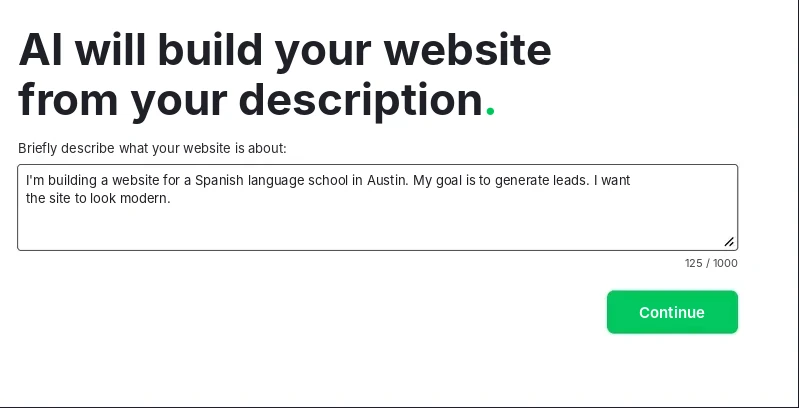
To create a website without coding, follow 8 steps: set a goal, choose a domain, build the site in a website builder, match the design to your brand, add content, set up basic SEO, test and publish, then promote it. With the WebWave website builder, you can publish a simple business website in a single day. I'll walk you through the whole process using a real example: a website for a Spanish school in Austin.
CREATING A WEBSITE
How to Make a Website: 8 Steps to Create Your Own Site Without Coding

How to create a website: 3 ways to do it
You can create a website in three ways: with a website builder, on WordPress, or by hiring a freelancer or agency. A builder is the fastest and needs no coding. WordPress gives you more plugins in exchange for setup and updates, and an agency takes the work off your hands but costs the most.
Which route is right for you? Compare them in the table:
| Website builder (WebWave) | WordPress (self-hosted) | Freelancer or agency | |
|---|---|---|---|
| Technical skills | none, drag-and-drop editor | medium: hosting, theme, plugins | none |
| Time to launch | 1 day to 1 week | 2-6 weeks | 4-12 weeks |
| Starting cost | from $6 net/month billed annually ($9 billed monthly), free .com domain for the first year | about $415 in the first year (hosting, domain, theme, plugins) | $2,000-$8,000 from a freelancer, $10,000+ from an agency |
| Who's in control | you, changes take minutes | you, but updates and security are on you too | the contractor, every change is a new job |
| Best for | small businesses, freelancers, creators | people with time for setup | businesses with big budgets and custom needs |
Running a small business and want to start fast? A builder gives you the best balance of time, cost and result. If you'd rather have someone else build it, the WebWave Hire an Expert (opens in a new tab) marketplace lets you find a WebWave expert to do it for you.
In the rest of this guide, I'll show you how to start a website in the WebWave builder, because it's a route you can finish on your own in a day.
Step 1. Set your website's goal and plan the pages
Before you open the editor, write down in one sentence what the website should do: collect inquiries, sell products or show a portfolio. The goal decides your list of pages. A small service business usually needs 4-5 pages: home, services, about, contact and a privacy policy.
How do you match pages to the type of website? Use this cheat sheet:
| Website type | Goal | Must-have pages |
|---|---|---|
| Business website | inquiries from customers | home, services, about, contact, privacy policy |
| Portfolio | showing your work | project gallery, case studies, testimonials, contact |
| Online store | selling online | categories, product pages, cart, shipping and returns, terms |
| Landing page | one specific action | a single page: benefits, social proof, a form or button |
Got your list? Sketch it as a simple sitemap, a diagram that shows how the pages connect in the menu. It takes 10 minutes and saves you from rebuilding the menu later.
Don't skip the legal part either. If your site collects personal data through a form, you need a privacy policy. In the US, California's CalOPPA requires one for any commercial website that collects personal information from California residents, and several other states have their own privacy laws.
Step 2. Choose a domain and hosting
A good domain is short, easy to type and has no numbers or hyphens. For most businesses, .com is the safest ending. WebWave includes hosting and an SSL certificate in every paid plan, so you don't have to set up a server.
Before you register an address, check it against 5 rules:
- Length: the shorter the name, the fewer typos when people type it.
- Spelling: avoid slang, abbreviations, numbers and hyphens you'd have to spell out on the phone.
- Brand fit: ideally, the domain sounds like your business name.
- Location: for a local business, you can add your city.
- Ending: .com for most businesses, a country ending like .us, .co.uk or .ca if you serve one country.
What about hosting? It's space on a server that keeps your website online. In WebWave, hosting, SSL (the padlock next to your address that tells visitors the site is secure), backups and monitoring come with the plan. Every paid plan also includes a free .com domain for the first year. Already have a domain with another provider, like GoDaddy or Namecheap? You can connect it in a few clicks.
Step 3. Build your website: AI, a template or from scratch
In WebWave, you can build a website in three ways. The AI website builder generates a complete site with pages and text from a short description. A template gives you a professional, mobile-ready design to edit, and a blank page lets you design everything yourself.
Which option should you choose? Compare them:
| Option | Time to first version | Design control | Best for |
|---|---|---|---|
| AI website builder | a few minutes | high: edit every element by hand or with the AI Assistant | people who want to launch fast |
| Template | a few hours | high: swap the text, photos and colors | people who know which style they like |
| Blank page | a few days | full: you place every section and element | people with their own vision or a designer's mockup |
How does it work in practice? In the AI website builder, you type a short description of your business and pick one of the suggested styles. WebWave generates a site with pages, images and text, and the AI Assistant lets you add more sections with a single prompt. Every design is ready for phones from the start.
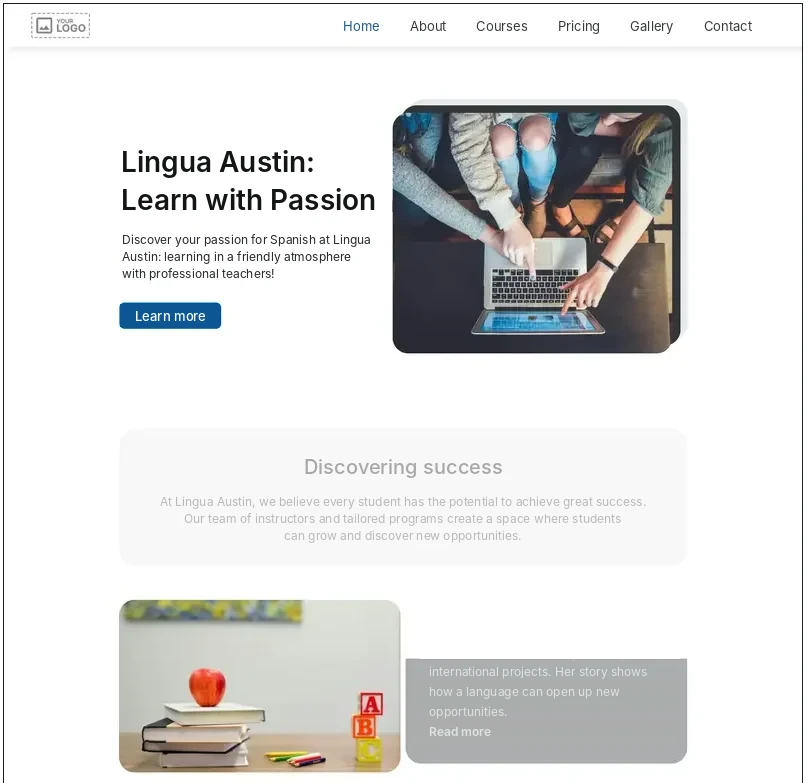
Prefer to start from a finished design? The WebWave website templates include designs for services, education, portfolios and online stores, created by professional designers and optimized for smartphones.
Website for a small businessStep 4. Match the design to your brand
Your website's look rests on 4 elements: colors, fonts, logo and favicon. If you use a template or the AI builder, WebWave picks them for you. Then all you have to do is swap them for your brand's colors and logo.
Before you start designing the website your way, go through this list:
- Colors: 1 main color, 1-2 accent colors and a neutral background.
- Fonts: 2 typefaces at most, easy to read on a phone. Sans-serif fonts usually work well on screens.
- Logo: if you don't have one yet, create it in an external tool or an AI logo generator.
- Favicon: the small icon in the browser tab. In WebWave, you add a favicon in the site settings (opens in a new tab).
Consistency matters more than originality. The same colors and fonts on every page make the site look professional and build trust.
Step 5. Write content that answers your customers' questions
Good website content answers the questions customers ask you on the phone and by email. Start with a list of those questions, not with a description of your company. Each page should answer a different one: what you offer, how much it costs, why you and how to get in touch.
Where do you find topics? Check 4 sources:
- Customer conversations: note the questions that keep coming up in emails and messages.
- Google results: the “People also ask” box shows what people in your industry are searching for.
- Competitor websites: see what they show in their offer and FAQ.
- AI tools: the AI Assistant in WebWave writes headings and section text based on your offer.
Keep it short and specific. The heading says what the customer gets, and the paragraph gives the facts: prices, dates, what's included. End each section with one clear call-to-action button, such as “Book a free trial lesson”.
Step 6. Set up basic SEO
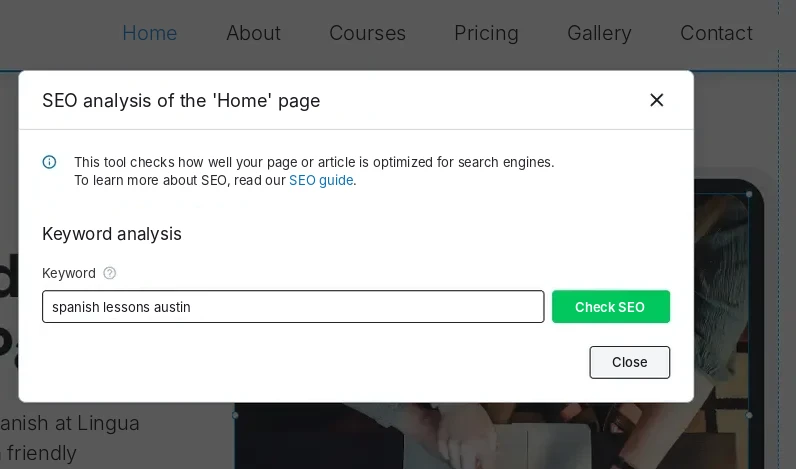
Basic SEO comes down to 6 tasks: a unique title and meta description on every page, alt text on images, links between pages, submitting the site to Google Search Console, a check in the WebWave SEO Analyzer and a mobile test. You can do all of them in the WebWave panel without code.
Work through this checklist:
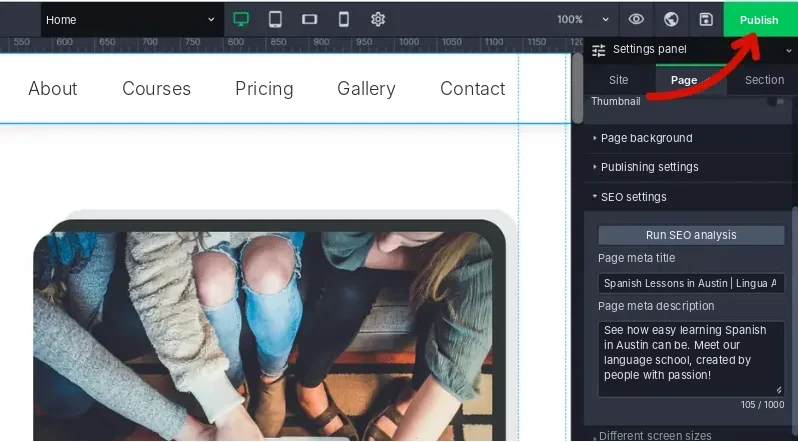
- Title and meta description: the title has about 50-60 characters and includes your main keyword. The meta description has about 150-160 characters and gives people a reason to click. Here's how to set meta tags in WebWave (opens in a new tab).
- Alt text: click an image, open its settings and describe what the picture shows.
- Internal links: connect pages with descriptive links, e.g. “Spanish classes for adults” instead of “click here”.
- Google Search Console: submit your site and sitemap. Our Google Search Console guide (opens in a new tab) shows you how.
- SEO Analyzer: in a page's SEO settings, run the SEO analysis, enter your keyword and fix what it flags.
- Mobile view: switch the Webmaster Panel preview to phone and check every page. This is also how you make a website mobile friendly before you publish.
Step 7. Test your website and publish it
Before you publish, check 4 things: links, text, how the site looks on different devices and how fast it loads. Testing takes about an hour and saves you from embarrassing mistakes with your first customers. Ask a friend to go through the site as a customer, too.
Go through this list in order:
- Click every link and button, then send a test message through the form.
- Read the text out loud and fix any typos.
- Open the site on a computer, a tablet and a phone.
- Test the speed in Google PageSpeed Insights. Aim for good Core Web Vitals, Google's speed and stability metrics: LCP under 2.5 s, INP under 200 ms and CLS under 0.1.
Everything works? Click the “Publish” button in the top right corner of the Webmaster Panel. Your site goes live at your address right away.
Step 8. After launch: promote your website and keep it up to date
Once it's live, your website needs traffic and fresh content. Start with channels that don't need a big budget, then check the results every month. A website that's updated regularly earns trust from both customers and search engines.
To start, pick 3-4 channels from this list:
- Google Business Profile: add your website address to your free profile. Here's how to add your business to Google Maps (opens in a new tab).
- Social media: choose 1-2 platforms where your customers spend time and link to your site from every profile.
- Newsletter: collect email addresses through a form and send updates once a month.
- Paid ads: Google Ads lets you quickly test interest in your offer.
- Blog: 1-2 articles a month that answer customers' questions build your visibility in Google. Our small business SEO tips show where to start.
Check your stats every month, too. See where visitors come from and which pages lead to inquiries, using Google Analytics connected to WebWave (opens in a new tab). Once a quarter, update your prices, offer and photos.
Just starting your company as well? Our guide on how to start a business covers the steps before and after your first website.
How long does it take to build a website?
You can build a simple one-page website with AI or a template in a few hours, and a bigger business website with a blog in a few days. The content and photos usually take the most time, not the building itself.
Here's a rough time breakdown for a business website with 5 pages:
| Stage | Time |
|---|---|
| Goal and page plan | 30-60 minutes |
| Domain and plan | 15 minutes |
| First version from the AI builder | a few minutes |
| Design and brand fit | 1-2 hours |
| Content and photos | 2-4 hours |
| SEO, testing and publishing | 1-2 hours |
Want to save time? Prepare your text, logo and photos before you sign up. Then you only need to focus on building.
How to make a website: summary
Now you know how to make your own website: from the goal and domain, through building it in a website builder, to SEO, publishing and promotion. You don't need a developer or a big budget, just a plan and a day of work. Want to try it in practice? Create a WebWave account and test the builder for 14 days, no credit card required.
FAQ
Can I make my own website?
Yes. In a website builder like WebWave, you can make a website without knowing any code. You have 3 options: the AI builder generates a site from a description in minutes, a template gives you a finished design to edit, and a blank page lets you design everything yourself with drag and drop.
How much does a website cost?
It depends on how you build it. A WebWave website costs from $6 net a month billed annually ($9 billed monthly), including hosting, SSL and a free .com domain for the first year. A self-hosted WordPress site costs about $415 in the first year, and a custom site from a freelancer usually costs $2,000-$8,000.
How do I make a website for free?
In WebWave, you can build and test a website for 14 days without a credit card. During the trial, you get the AI builder, templates and the editor. To publish the site on your own domain, you choose a paid plan. Our guide on how to create a website for free compares the free options.
How long does it take to build a website?
A simple one-page website made with AI or a template takes a few hours. A bigger business website with a blog takes a few days. Content and photos take the most time, so it's worth preparing them before you start in the builder.
How do I create a website for my business?
Start with the goal, such as collecting inquiries. A small service business usually needs 5 pages: home, services, about, contact with a form and a privacy policy. Then choose a domain, build the site in a website builder and set up basic SEO before you publish.
Can a website made with a builder rank well on Google?
Yes, if you take care of your content and basic SEO. WebWave lets you edit titles, meta descriptions, headings and alt text, and gives you a sitemap.xml, 301 redirects and the SEO Analyzer. The language school Chatschool built its website in WebWave on its own and got 11,500 clicks a month from Google in March 2026.